How do you set up Meta Business Agent on WhatsApp?
There are two setups. On the WhatsApp Business app, open Tools and follow Meta Business Agent if the option is shown; the number must be on the Business app, and a catalog may be required. On WhatsApp Cloud API, accept the Meta Business Agent Terms in WhatsApp Manager, confirm the phone number with the Eligibility API, onboard the agent, add knowledge and instructions, test on the Agent Test API (those tokens are not billed), then enable it. Turning the agent on for every customer requires a payment method on the Business Agent account. An allowlist-only audience can be enabled before billing.
Last updated: 29 September 2026
Meta Business Agent is AI that answers customers on your WhatsApp number. Setup is not one button. The WhatsApp Business app path and the Cloud API path use different numbers, different billing, and different ceilings. Pick the path that matches the number you already message from, then follow that sequence.
Announcement context: Conversations 2026 recap. Who can turn it on: eligibility. What Meta invoices: pricing.
Primary sources: How to set up Meta Business Agent on Messenger or WhatsApp (Business Help Center), Meta Business Agent overview (updated 3 September 2026), and Quickstart (updated 18 September 2026). Menus and eligibility change — confirm in WhatsApp Manager before you promise a go-live date.
Too long? Start here
- Business app: the number is registered on the WhatsApp Business app. Open the app, tap Tools, and follow Meta Business Agent if Meta shows it. A product catalog may be created during setup. The Help Center says the feature may not be available yet — Business Suite is the check
- Cloud API: the number is on the WhatsApp Business Platform (direct Cloud API, a Solution Partner, or Embedded Signup). Accept Terms in the Meta Business Agent tab of WhatsApp Manager, confirm eligibility, onboard, teach the agent, test, then enable
- Test traffic is not live traffic. The Agent Test API does not reach WhatsApp users, and those tokens are not billed. An allowlisted audience can be enabled before a payment method exists. Enabling the agent for everyone requires a payment method, or Meta will not deliver those messages
- A second AI on the same number blocks this one. An active authorized-agent integration and Meta Business Agent cannot both own the thread
- Teams that need a shared inbox, templates, and Shopify or Zoho can run the same jobs on Ominiflow without waiting on Meta’s agent rollout. Start free
Choose the path before you tap anything
The two products share a name and do different jobs. Mixing them is how teams end up with two inboxes and one confused customer.
| WhatsApp Business app | Cloud API (Business Platform) | |
|---|---|---|
| Where you start | WhatsApp Business app or Meta Business Suite | WhatsApp Manager → Meta Business Agent tab, then the platform APIs |
| Number | Registered to the Business app | Enterprise platform number, including one managed through a Solution Partner or Embedded Signup |
| Catalog | May be required; you can create one during setup | Knowledge, catalog, files, websites, and your own API connectors |
| Who it fits | One phone, one operator | A team that already sends templates, OTP, and order updates |
| Go-live gate | Meta shows the control, or it does not | Eligibility, accepted Terms, app subscription, webhooks, and a payment method for a public audience |
If two agents already answer the same customers from a shared queue, stay on Cloud API. The Business app agent is the solo path. The split is the same one in WhatsApp API vs the Business app.
Path A — WhatsApp Business app
Meta’s Help Center limits this path to a phone number registered on the WhatsApp Business app. You may need a WhatsApp product catalog; if you do not have one, setup can create it.
- Open the WhatsApp Business app on the phone that owns the business number.
- Tap Tools.
- Open Meta Business Agent if it is listed. Meta says the feature may not be available to you yet. If the row is missing, check Meta Business Suite rather than reinstalling the app.
- Follow the in-app prompts for tone, business details, and catalog. Availability is country- and account-gated. The holiday tips page has named Mexico and the Philippines for one Business-app rollout; that list is not the Cloud API country list. See eligibility.
The app path is the “minutes” setup from the June 2026 announcement. It does not give you approved Marketing templates, a multi-agent inbox, or Shopify webhooks. When the second person needs the same chat, move the number to Cloud API first, then decide whether Meta’s platform agent or your own AI should answer.
Path B — Cloud API, in order
Meta’s developer quickstart (18 September 2026) is the shortest path from an eligible platform number to a reply. It does not put the agent in front of customers. Live traffic is a later step.
1. Confirm the number can run an agent
In WhatsApp Manager, open Account tools → Phone numbers and copy the phone number ID. That ID is the entity_id on every Business Agent call. The Eligibility API can be queried before you accept Terms. A false result means stop: vertical, country, verification, restriction, or another agent on the number. Criteria: who is eligible.
2. Accept the Terms of Service
Accept the Meta Business Agent Terms in the Meta Business Agent tab of WhatsApp Manager for that WhatsApp Business account. Onboarding and the Agent Test API return 403 until the account has accepted. The eligibility check is the exception — it is allowed before acceptance.
3. Use a token that can both send and read
Calls authenticate as a system user. A direct integrator uses a system user access token. A Solution Partner or Tech Provider calling for a client uses a Business Integration System User token. The app needs whatsapp_business_messaging (a token without it returns 401) and whatsapp_business_management (without it, read calls authenticate and return no data). Platform endpoints expect the header X-API-Version: 2.0.0. Thread Control on Cloud API is a different API version — follow the header on that endpoint’s page, which Meta documents as 1.0.0.
4. Onboard, then wait
Create the agent with the Onboarding API. For WhatsApp the body can be empty; catalog_id applies to Instagram agents. A 201 returns an agent_id. Onboarding schedules data preparation. Give it about a minute. Until that call succeeds, every other endpoint reports that no agent exists (404).
5. Teach it before you judge the first reply
A fresh agent answers from whatever business information already exists, so the first test reply is general. That is expected. Shape it with:
- Instructions — tone, priorities, policies, and what it must refuse
- Knowledge — business info, FAQs, websites, and files (care guides, terms of sale, assembly notes)
- Connectors — your own APIs so it can look up an order, book a slot, or confirm a payment, with an auth method Meta supports
- Handoff rules — the events that pass the thread to your app, with a staffed destination on the other side
Re-test after each change. The Agent Test API runs the full pipeline and returns the reply in the same call. Pass the conversation_id back to keep a multi-turn test. Omit it to start clean. Tokens on this endpoint are not billed, and no WhatsApp user sees the thread.
6. Subscribe the app, then decide the audience
Live replies need three things the quickstart skips: a payment method when the audience is everyone, your app subscribed to the WhatsApp Business account, and the webhook fields that deliver messages to your app. Turn the agent on in Agent Settings with rollout enabled.
Meta’s changelog splits the billing gate:
- Allowlisted only — the agent answers numbers you put on the channel allowlist. Enabling this audience does not require a payment method. Use it to watch real WhatsApp delivery before you open the number to customers.
- Everyone — expanding to all customers requires a payment method on the Business Agent account. Without it, Meta returns
400and will not deliver Business Agent messages.
Billing detail, including India invoicing in INR: Meta Business Agent pricing.
7. Do not steal the thread by accident
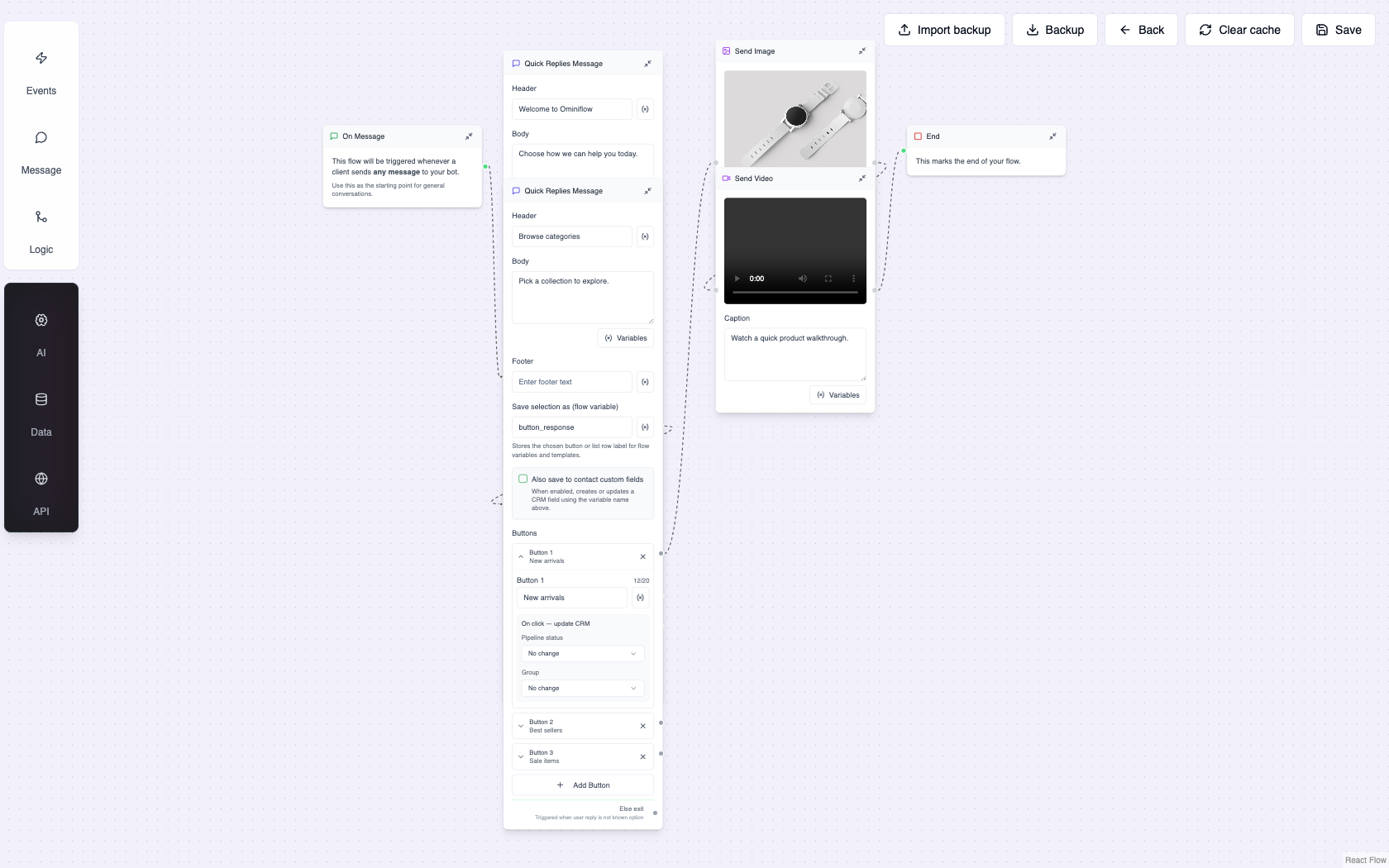
If your app sends a message into a live conversation, it takes control and the agent stops replying until control is released. That only affects live WhatsApp threads, not the Agent Test API. Agree the handoff in advance: refund language, two failed intents, and an explicit “talk to a person” all land in a staffed queue with the history intact. On Ominiflow that queue is the shared inbox.
A go-live checklist
Eligibility is true for this phone number ID, and the business category is set
Terms accepted on the WhatsApp Business account that owns the number
Knowledge is specific — hours, shipping, returns, and the SKUs you actually sell — and a human destination exists for handoff
Allowlist tested on a few real numbers before the audience is everyone
Payment method attached to the Business Agent account before public traffic. Meta bills this account directly, including when a Solution Partner manages the number
When to set this up on Ominiflow instead
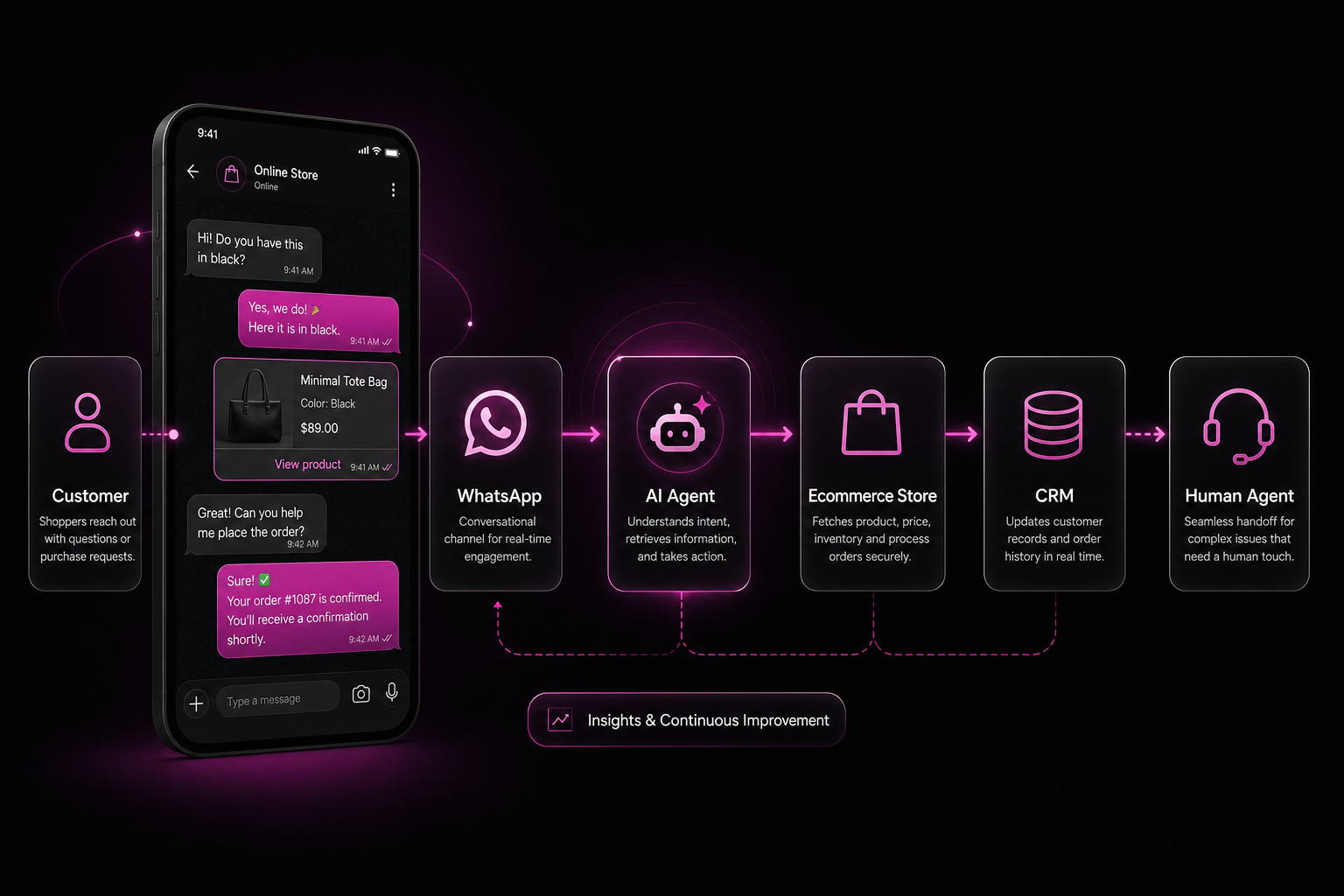
Ominiflow runs official Cloud API with an AI node, catalog, CRM, and a shared inbox in one workspace. That is the path when any of these are true: Meta’s eligibility check is false (common for finance and health), you already have a visual bot and do not want a second agent on the number, or the team needs assignment and collision detection this week.
Typical go-live is 5–7 business days once Business Manager documents are complete. AI agents are included in the platform, from ₹15,000/year, with Meta conversation fees at cost. Those replies are service messages, billed on Meta’s service rate card from 1 October 2026 — a different invoice from Business Agent tokens. Setup guide: WhatsApp AI agent for business.
WhatsApp AI agents · No-code store chatbot · Eligibility · Pricing · Announcement recap
FAQ
How do I set up Meta Business Agent on the WhatsApp Business app? expand_more
Use a number registered to the WhatsApp Business app. Open the app, tap Tools, and open Meta Business Agent if it appears. You may need a product catalog, which setup can create. If the option is missing, Meta has not enabled it for that account — check Meta Business Suite. The Help Center says the feature may not be available yet.
How do I set up Meta Business Agent on a Cloud API number? expand_more
Accept the Meta Business Agent Terms in WhatsApp Manager, confirm the phone number with the Eligibility API, onboard the agent, add instructions and knowledge, and test with the Agent Test API. Subscribe your app and the webhook fields, then enable rollout. An allowlisted audience can go on before billing. Enabling the agent for every customer requires a payment method on the Business Agent account.
Does the test API message real customers? expand_more
No. The Agent Test API returns a reply to your API call. It does not deliver to WhatsApp users, and tokens consumed there are not billed. Live delivery starts only after you enable the agent.
Why did the agent stop replying after my app sent a message? expand_more
Sending from your app takes thread control. The agent stays quiet on that live conversation until control is released. The Agent Test API is unaffected. Plan handoff so a person receives the thread with history, instead of both sides answering at once.
Can I set up Meta Business Agent and an Ominiflow bot on the same number? expand_more
Meta blocks Business Agent when another AI agent integration is already active on that phone number. Run one responder. Use Ominiflow’s AI node and shared inbox when you need templates, CRM, and a team queue on official Cloud API.