How do I set up a WhatsApp chatbot without coding?
Build and launch a WhatsApp chatbot in 7 steps — no developers required. From Meta verification to your first FAQ flow and agent handoff on Ominiflow. Verify your business on Meta, connect your number through Ominiflow, build a flow in the visual builder, configure agent handoff, test internally, and publish. No programming required.
Last updated: 6 July 2026
To set up a WhatsApp chatbot without coding: (1) verify your business on Meta, (2) connect your number via Ominiflow, (3) design a flow in the visual builder, (4) add welcome + FAQ nodes, (5) configure agent handoff, (6) test with sandbox contacts, (7) go live. Most teams complete this in 3–5 days.
Too long? Start here
- Prerequisites: Meta Business Manager, dedicated phone number, top 10 FAQs, Ominiflow account
- Builder nodes: Send message, ask question, condition, delay, assign agent, CRM action
- Starter flow: Welcome buttons → Sales / Support / Track order branches
- Handoff: "Talk to human" on every branch; fallback after 2 unrecognized messages
- Outbound: Templates required outside 24-hour window — integration guide
New to bots? Read what is a WhatsApp chatbot first. This tutorial is the hands-on companion for business users — no JavaScript required. Running a Shopify or D2C store? Use the store-specific playbook: no-code WhatsApp chatbot for your online store.
Before you start
- Meta Business Manager account (admin access)
- Phone number not active on personal WhatsApp (or new number)
- List of top 10 customer questions your bot should answer
- One agent available for handoff testing
- Ominiflow account — start free trial
Step 1: Complete Meta Business verification
- Create or open Meta Business Manager
- Add business legal name, address, website matching
ominiflow.comor your domain - Submit verification documents (GST, utility bill, or incorporation cert for India)
- Wait 1–5 business days for approval
Full checklist: WhatsApp API onboarding
Step 2: Connect your WhatsApp number
- In Ominiflow, start WhatsApp Cloud API onboarding
- Select or create a WhatsApp Business Account (WABA)
- Verify number via SMS or voice OTP
- Display name and category must match your business
Tip: Do not delete personal WhatsApp on the number until migration is planned — see common mistakes.
Step 3: Open the visual flow builder
Ominiflow's no-code builder uses drag-and-drop nodes:
- Send message — text, image, or buttons
- Ask question — collect name, email, order ID
- Condition — branch on keyword or field value
- Delay — wait before follow-up
- Assign agent — route to inbox queue
- CRM action — create Zoho lead or tag contact
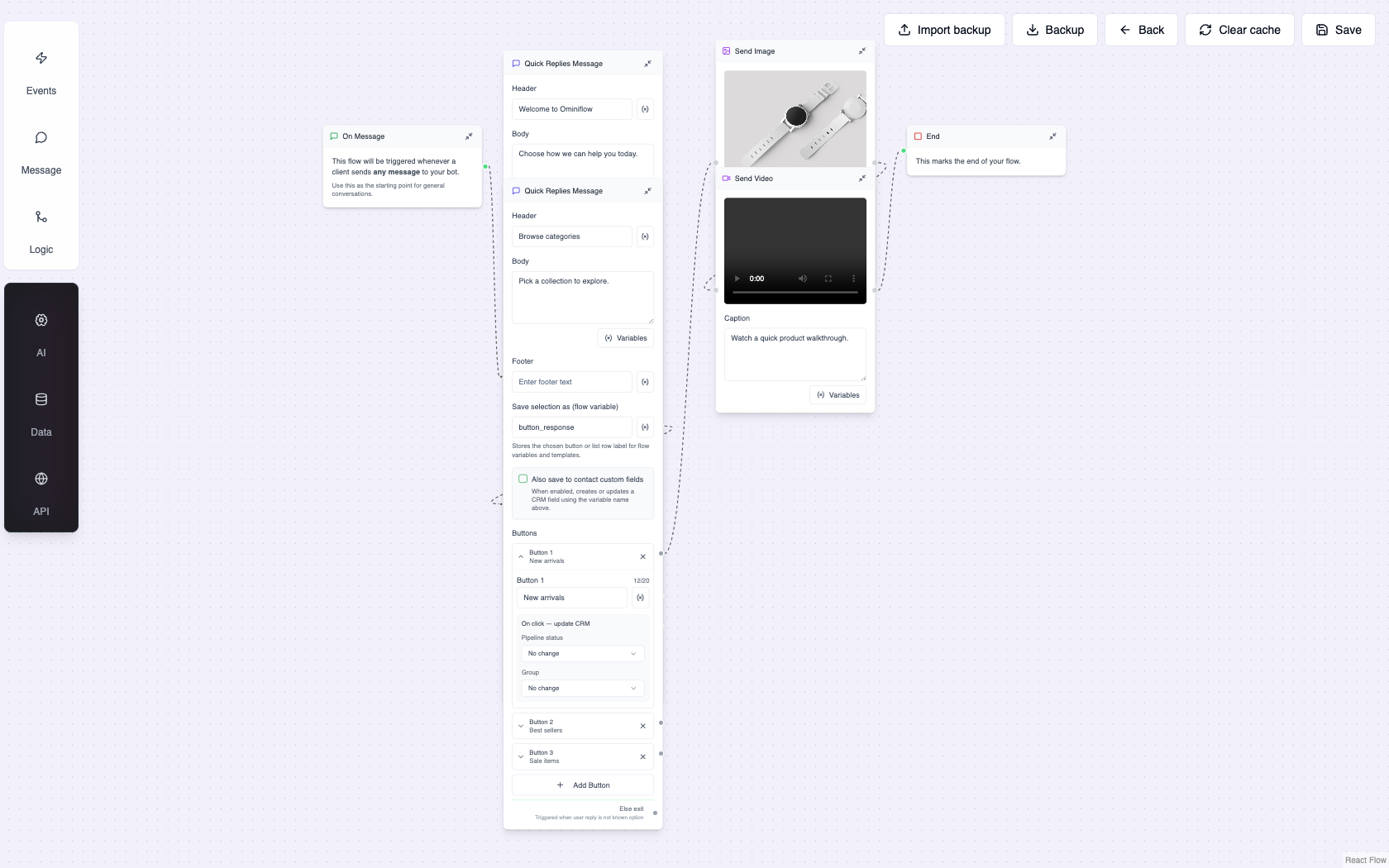
Open the flow builder from Ominiflow — add triggers, messages, buttons, and agent handoff nodes from the sidebar.
Step 4: Build your first flow (FAQ + lead capture)
Recommended starter flow:
- Welcome: "Hi! I'm the automated assistant for [Brand]. Choose an option:" + 3 buttons (Sales, Support, Track order)
- Sales branch: Ask product interest → collect phone → create CRM lead → offer agent chat
- Support branch: Match FAQ keywords (shipping, return, warranty) → if no match, escalate
- Track order: Ask order ID → webhook lookup (Shopify) → send status or agent handoff
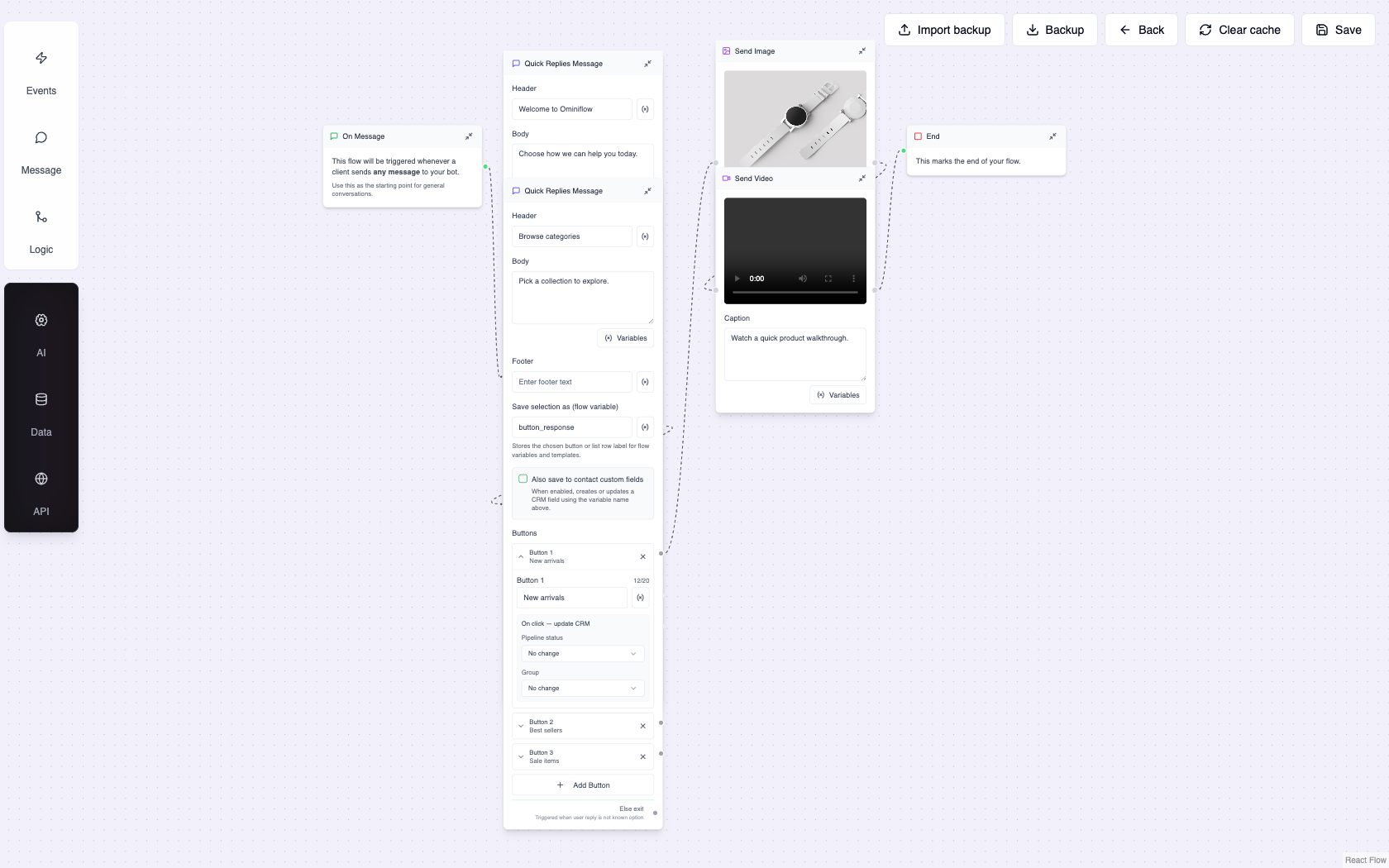
Starter pattern — quick-reply buttons, list menu, rich image, and video nodes chained before handoff or end.
D2C teams: copy patterns from 10 Shopify workflows
Step 5: Configure human handoff
- Add Talk to human button on every major branch
- Set fallback: after 2 unrecognized messages → assign to default queue
- Enable agent notifications (browser + mobile)
- Test that bot transcript is visible to agent in unified inbox
Step 6: Test before go-live
- Add 3 internal test numbers as allowed contacts
- Run every button path — confirm no dead ends
- Trigger handoff — agent receives within 30 seconds
- Check CRM record created correctly
- Review bot copy for clarity and policy compliance
Step 7: Go live and monitor
- Publish flow and set as default for inbound messages
- Add website/chat link and QR code
- Monitor: containment rate, drop-off nodes, handoff volume
- Iterate weekly — bots improve with real conversation data
Outbound templates (optional add-on)
Inbound bots work inside the 24-hour customer service window. For proactive messages (cart recovery, OTP), submit message templates in Ominiflow and Meta Business Manager. Allow 1–3 days for approval.
FAQ
Can I build a WhatsApp chatbot without coding? expand_more
Yes. Ominiflow provides a visual drag-and-drop builder on the official Cloud API — no developers required for standard FAQ, lead capture, and handoff flows.
How long does WhatsApp chatbot setup take? expand_more
3–5 business days including verification and testing. Template-heavy outbound programs add 2–5 days for Meta approval.
Does the chatbot work 24/7? expand_more
Yes. Bots reply instantly any hour. Agents cover escalations during business hours or via on-call rotation. Online store chatbot (no code) · WhatsApp chatbot for business · API integration guide · Book setup call Updated July 2026. No-code WhatsApp chatbot setup guide.