What is the Ominiflow Google Sheets integration?
Connect Google Sheets to WhatsApp via Ominiflow: broadcast campaigns from a sheet, log leads from chat, trigger templates on new rows, and sync delivery status — with or without Zapier. It connects WhatsApp Business API to Google Sheets so you can broadcast from a contact list, trigger templates on new or updated rows, and write delivery or reply status back to the spreadsheet.
Last updated: 31 October 2026
Google Sheets is where thousands of Indian SMBs still run leads, inventory, and campaign lists — especially before they adopt a full CRM. Connecting Google Sheets to WhatsApp Business API via Ominiflow closes the loop in both directions: paste a contact list and broadcast WhatsApp campaigns from the sheet, or fire a template when a new row lands. Customer replies open in the shared team inbox and write status back to the row. No copy-paste between a spreadsheet and your business number.
This guide covers what a Sheets ↔ WhatsApp integration actually does, how to run bulk broadcasts from a sheet, three setup patterns (native connector, Make/Zapier, Apps Script), field mapping, personalization, compliance, and the mistakes that break Sheets automations in production.
Too long? Start here
- Broadcast: Import or paste opted-in contacts in Sheets → map columns → send approved marketing/utility templates in bulk from Ominiflow
- Outbound trigger: New Google Sheets row → Ominiflow → approved WhatsApp template to phone in column
- Inbound: WhatsApp reply → team inbox + Sheets row update matched by phone number
- Phone numbers must be E.164:
919876543210(no + in API payload) - Business-initiated messages need approved templates unless the customer messaged you within 24 hours
- No extra Sheets connector fee on Ominiflow — you pay the platform plan + Meta conversation rates
- For CRM-grade sync, graduate to Zoho CRM integration when volume justifies it
What is Google Sheets + WhatsApp integration?
A Google Sheets WhatsApp integration (sometimes called a WhatsApp message sender for Google Sheets) connects your spreadsheet to the WhatsApp Cloud API through a Business Solution Provider like Ominiflow. You keep contacts and campaign data in Sheets — the tool most ops teams already use — and send personalized WhatsApp messages without exporting CSVs into a separate blast tool every time.
Typical capabilities:
- Bulk / broadcast sends from a contact sheet
- Row-triggered messages (new lead, status change, form submit)
- Personalization from columns (name, product, city, language)
- Delivery, read, and reply status written back to columns
- Replies handled in a shared team inbox with quick replies and assignment
Ominiflow is on the Google Workspace Marketplace as Ominiflow for Google Sheets. That add-on sends approved templates from the spreadsheet menu. Launch notes: Ominiflow on Google Workspace Marketplace. The connector and broadcast manager below are the path when you also want inbox write-back and scheduled sync. Comparing BSPs? See Ominiflow vs WATI.
Why integrate Google Sheets with WhatsApp?
- Lightweight CRM — teams not ready for Zoho still need automated follow-up
- Campaign lists — keep the master broadcast list in Sheets; send personalized templates without re-uploading
- Event registrations — form responses in Sheets trigger confirmation WhatsApp
- Field sales lists — daily lead dump from partners → instant WhatsApp outreach
- Campaign tracking — delivery status, read receipts, and reply flags written back to columns
- Agency workflows — one master sheet per client campaign with message triggers
- Less manual work — no export → upload → map → send loop every week
What you can automate from Google Sheets
| Workflow | Trigger | Template type | Write-back |
|---|---|---|---|
| Bulk promo / newsletter | Broadcast from sheet list | Marketing (opt-in) | sent / delivered / failed |
| Lead welcome | New row | Marketing or utility | status + reply flag |
| Event confirmation | Form → new row | Utility | confirmed / no-show |
| Interview reminder | Scheduled / status cell | Utility | reminded / replied |
| Order / shipping update | Status column change | Utility | delivered timestamp |
| Inventory / ops alert | Threshold cell edit | Utility | acked by agent |
| Contact data hygiene | Inbound reply | — | update name, opt-out, notes |
Benefits of Sheets + WhatsApp on Ominiflow
- Easy setup, no extra connector fee — Google OAuth in Integrations; Sheets sync is included in the platform plan (Meta conversation fees still apply)
- Personalize in every approved language — map sheet columns to template variables; use language-code columns for Hindi, English, Tamil, etc.
- Shared team inbox — when recipients reply, agents handle chats with quick replies and assignment instead of losing context in a sheet cell
- Broadcast manager — send bulk WhatsApp from a sheet-backed list with pacing, filters, and delivery reports
- No-code paths — native connector or Make/Zapier; Apps Script when you need custom logic
- Bi-directional data — outbound sends and inbound status both land in the same spreadsheet
Before you start
- Active Ominiflow account with WhatsApp Cloud API connected (on-prem deprecated Oct 2025)
- Google account with edit access to target spreadsheet
- Column for phone number in international format
- Meta-approved templates for each trigger type (utility or marketing with opt-in)
- Documented opt-in source for marketing messages — store date/source in a column
- A clean sheet structure (see sample columns below)
New to Cloud API? Start with the WhatsApp Business API complete guide and setup walkthrough.
Sample sheet structure for broadcasts
Use one header row. Keep phones unique. Never put the + in the phone column for API sends.
| Column | Example | Purpose |
|---|---|---|
| phone | 919876543210 | Recipient (E.164, no +) |
| first_name | Priya | Template {{1}} |
| city | Pune | Template {{2}} |
| product | Pro Plan | Template {{3}} |
| lang | en / hi | Template language code |
| opt_in_date | 2026-06-01 | Marketing compliance |
| opt_in_source | website-form | Audit trail |
| status | pending | pending → sent → delivered → replied / failed |
| last_sent_at | — | Write-back timestamp |
| row_id | uuid or sheet row | Deduplication key |
Filter before broadcast: status = pending AND opt_in_date is not empty (for marketing). Add a Sheets formula to normalize phones, e.g. prepend 91 when length is 10.
How to broadcast WhatsApp campaigns from Google Sheets
This is the workflow most teams search for when they see competitor “Google Sheets Message Sender” pages — send bulk, personalized WhatsApp from a spreadsheet list.
- Prepare the sheet with the columns above; remove duplicates and blank phones
- Confirm every marketing contact has documented opt-in
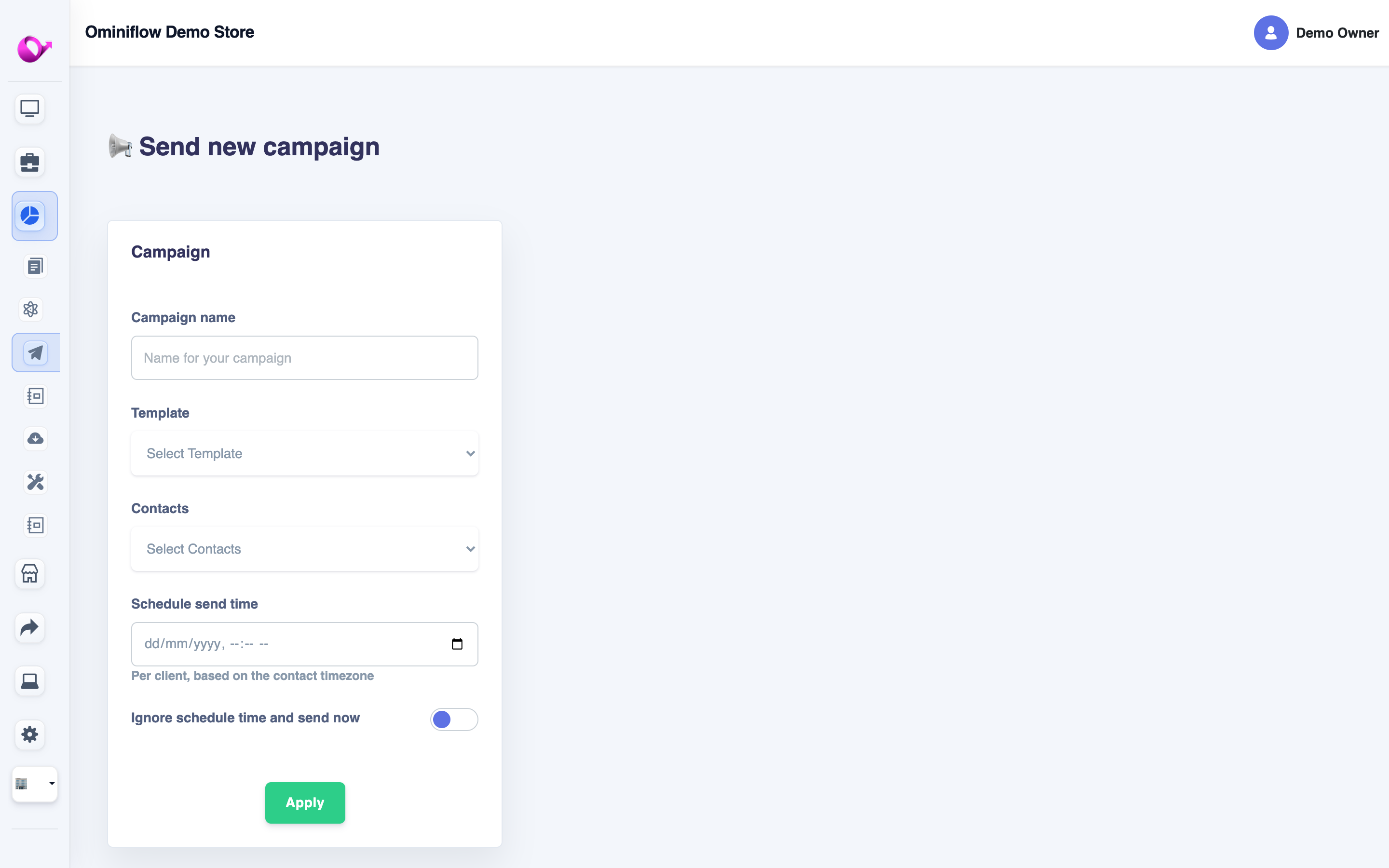
- In Ominiflow, open Broadcasts / Campaigns (or Integrations → Google Sheets → Broadcast)
- Connect or select the Google Sheet + tab as the audience source
- Map phone, name, and variable columns to an approved template
- Optionally filter by
lang, city, or segment column so one sheet feeds multiple localized sends - Send a test to your own number; verify variable order matches the approved template
- Schedule or start the campaign; watch delivery in the broadcast report
- Status columns update as messages move to sent / delivered / failed; replies open in the team inbox
Pace large lists. Meta quality rating drops if too many users block or report you — start with a warm segment, not the entire historical sheet on day one. Template rules: template message API guide.
Integration architecture
- Trigger — broadcast job, new row, cell edit, or scheduled poll detects change in Google Sheets
- Middleware — Ominiflow connector, Make, Zapier, or Apps Script transforms row data to JSON
- Ominiflow — validates template, formats phone, sends message, stores conversation
- Meta Cloud API — delivers WhatsApp message to customer
- Write-back — delivery/read/reply status appended to Sheets columns
Setup: three integration methods
Method 1: Ominiflow native Google Sheets connector
- Connect your WhatsApp Business API number on Ominiflow
- Navigate to Integrations → Google Sheets
- Authenticate via Google OAuth — grant read/write to target spreadsheet
- Select spreadsheet and worksheet tab
- Map columns: phone, name, template variables ({{1}}, {{2}})
- Configure trigger: new row added OR specific column value change — or use the sheet as a broadcast audience
- Select approved template and language code (or map a
langcolumn) - Run test row with your own phone number
Best for: Teams wanting managed sync and broadcasts without Zapier subscription costs.
Method 2: Make or Zapier (no-code middleware)
- Trigger: Google Sheets — New Row or Updated Row
- Filter: phone column is not empty; status column = "pending"
- Action: Ominiflow — Send Template Message
- Map row fields to template parameters
- Action: Google Sheets — Update Row (status = "sent", timestamp)
- Optional: second scenario for inbound — Ominiflow webhook → Sheets update
Guide: Make + WhatsApp integration
Best for: Quick POC, multi-app chains (Sheets + Gmail + Slack).
Method 3: Google Apps Script + Ominiflow API
For developers who want full control without per-task middleware billing:
function onFormSubmit(e) {
  var row = e.values;
  var phone = row[2]; // column C
  var name = row[1];  // column B
  var payload = {
    to: phone,
    template_name: "event_confirm",
    language: "en",
    components: [{
      type: "body",
      parameters: [
        { type: "text", text: name },
        { type: "text", text: row[3] }
      ]
    }]
  };
  UrlFetchApp.fetch("https://api.ominiflow.com/v1/messages", {
    method: "post",
    headers: { Authorization: "Bearer YOUR_API_KEY" },
    contentType: "application/json",
    payload: JSON.stringify(payload)
  });
}
Best for: High-volume triggers, custom validation, or complex row logic.
Personalization and multi-language sends
Approved WhatsApp templates support body variables. Map sheet columns 1:1 to those variables — first name, order ID, city, offer code. For multi-language campaigns:
- Approve the same template in each language (e.g.
promo_july_en,promo_july_hi) - Add a
langcolumn in Sheets - Filter or route the broadcast so each language code uses the matching template
- Keep variable order identical across language versions so one column map works
Do not paste free-form marketing copy into Sheets and expect to send it as plain text outside the 24-hour window — Meta requires templates for business-initiated messages.
Field mapping reference
| Sheets column | Ominiflow field | Notes |
|---|---|---|
| Phone | to | E.164: 919876543210 |
| Name | Template {{1}} | First name preferred |
| Event/Product | Template {{2}} | Match approved template text |
| Status | Write-back | pending → sent → delivered → replied |
| Opt-in date | Compliance log | Required for marketing templates |
| Row ID | Custom field | Deduplication key |
Use cases by team type
- Event organisers — registration row → confirmation template with venue pin; later broadcast day-of reminders from the same sheet
- Coaching institutes — enquiry sheet → demo class reminder sequence
- Real estate — portal lead export → instant WhatsApp qualification
- HR / recruitment — applicant row → interview slot confirmation
- Small D2C — order log sheet → shipping update when status column changes
- Agencies — client campaign list in Sheets → localized bulk send + inbox handoff
Compliance and quality tips
- Marketing templates require prior opt-in — keep source and date in the sheet
- Honour opt-outs immediately; mark the row and exclude from future broadcasts
- Validate E.164 before send; bad numbers hurt quality rating
- Avoid blasting cold historical lists; warm with engaged segments first
- Utility templates for transactional triggers; marketing for promos
India pricing context: utility and marketing conversation rates are set by Meta — see current figures in our WhatsApp Business API India guide.
Troubleshooting
| Symptom | Cause | Fix |
|---|---|---|
| Template send fails | Phone missing country code | Prepend 91 for India; validate in Sheets formula |
| Duplicate messages | Trigger fires on every edit | Add status column filter; use row ID dedup |
| Marketing template rejected | No opt-in documented | Add opt-in column; only message opted-in rows |
| Make scenario silent failure | Zapier/Make task limit hit | Check execution history; add error notification |
| Wrong variable in message | Column index mismatch | Re-map after inserting/deleting columns |
| Broadcast stuck / partial send | Empty phones or failed rows | Filter failed status; fix phones; resume pending only |
| Replies not in sheet | Write-back not enabled | Enable inbound sync or webhook → Sheets update |
Connect Sheets on Ominiflow
Ominiflow provides Google Sheets integration alongside native Zoho CRM connectors, webhooks, broadcast manager, shared inbox, and full Cloud API access. The Workspace Marketplace add-on is listed free of charge. Typical Sheets setup: 30–60 minutes including template approval wait time. No separate Sheets fee beyond your plan and Meta conversation charges.
Related: API integration guide · all integrations · pricing · Ominiflow vs WATI
FAQ
What is the Ominiflow Google Sheets integration? expand_more
It connects your WhatsApp Business API number to Google Sheets so you can broadcast campaigns from a contact list, trigger templates when rows are added or updated, and write delivery/reply status back to the spreadsheet — with replies handled in the shared team inbox.
Can I send bulk WhatsApp messages from Google Sheets? expand_more
Yes. Use the sheet as a broadcast audience: map phone and personalization columns to an approved template, filter opted-in rows, then send or schedule the campaign from Ominiflow’s broadcast manager.
Do I need Zapier to connect Google Sheets with WhatsApp? expand_more
Not necessarily. Ominiflow offers a native Google Sheets connector. Make, Zapier, and Apps Script are alternatives depending on your technical comfort and volume. Zapier walkthrough: send WhatsApp using Zapier.
Is there an extra fee for Google Sheets integration? expand_more
No separate Sheets connector fee on Ominiflow. You pay your platform plan plus Meta’s per-conversation rates for messages you send.
How long does Google Sheets WhatsApp integration take? expand_more
Native connector setup: 30–60 minutes. Template approval may add 15 minutes to 48 hours depending on category. Apps Script builds: 2–4 hours for custom logic.
Is the Google Sheets integration bi-directional? expand_more
Yes. Outbound: new rows or broadcasts trigger WhatsApp templates. Inbound: replies and delivery status can write back to sheet columns when configured.
What phone format does WhatsApp API require? expand_more
E.164 without plus sign: country code + number (e.g. 919876543210 for India). Ten-digit Indian numbers without country code will fail silently.
Can I personalize messages in different languages from one sheet? expand_more
Yes. Keep a language column, approve templates per language, and route or filter the broadcast so each row uses the matching language code and variables.
Can I send marketing messages from a Google Sheet? expand_more
Yes, with approved marketing templates and documented opt-in for each contact. Utility templates work for transactional triggers (confirmations, reminders).
When should I move from Sheets to a CRM? expand_more
When you need pipeline stages, agent assignment, conversation history per deal, or more than ~500 active leads/month. See Zoho CRM integration.
Does this work with WhatsApp Cloud API? expand_more
Yes. Ominiflow connects to Meta's Cloud API — the only supported path since on-premise API was retired in October 2025. Updated July 2026. Google Sheets + WhatsApp broadcast and sync guide for business and ops teams.